How to reduce the size of videos without losing quality
Published in July 2026 • 10 min read
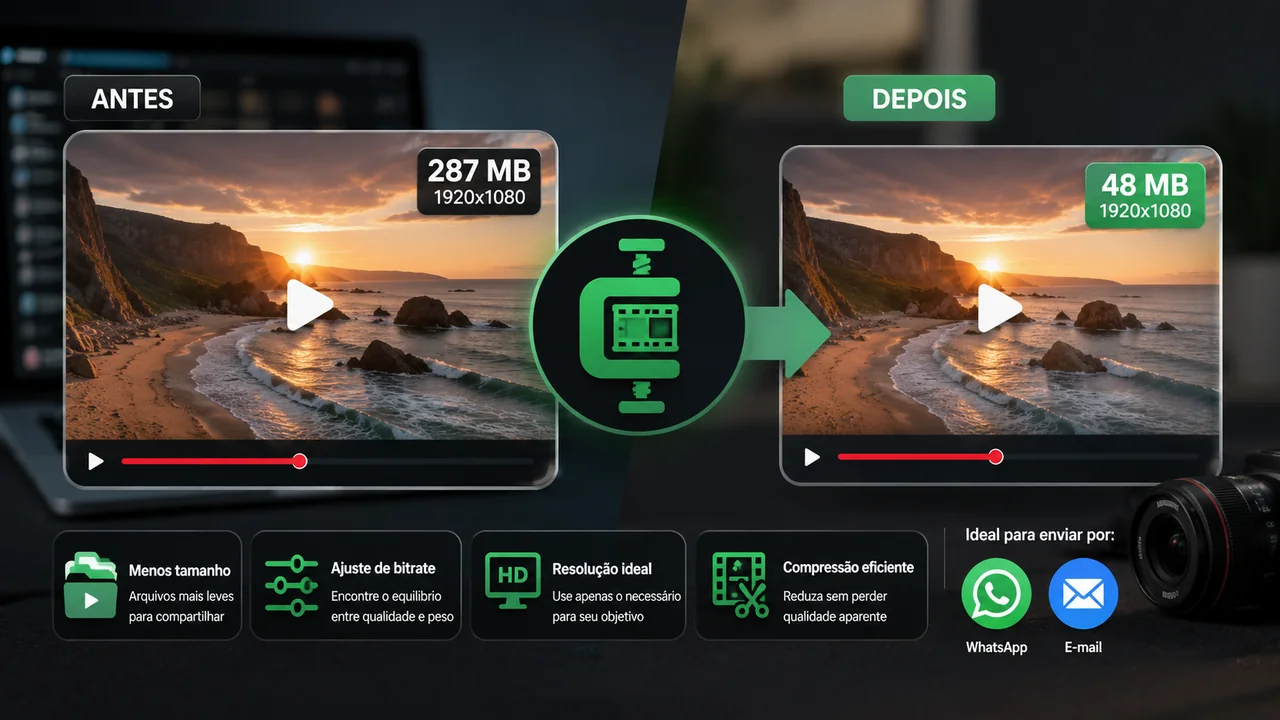
Did you record an incredible video on your cell phone, but it took up 2GB and you can't send it via WhatsApp? Or maybe you need to upload a video to a platform that has a 100MB limit? Video compression is one of the most useful skills in the digital age — and, contrary to what many think, it is possible to drastically reduce the size of a video file while maintaining excellent visual quality.
In this comprehensive guide, we will explain the factors that determine the size of a video file, the compression techniques available, and how to use these techniques to achieve the perfect balance between quality and size.
What determines the size of a video file?
The final size of a video depends on four main factors:
1. Resolution (number of pixels)
The resolution defines how many pixels make up each frame of the video. The higher the resolution, the more detailed the image — but also the larger the file:
- 480p (SD): 854 x 480 = ~410,000 pixels per frame
- 720p (HD): 1280 x 720 = ~922,000 pixels per frame
- 1080p (Full HD): 1920 x 1080 = ~2,073,000 pixels per frame
- 4K (Ultra HD): 3840 x 2160 = ~8,294,000 pixels per frame
A 4K video has 4x more pixels than a 1080p video, which means it can be 4x larger in file size. For most personal uses, 1080p offers more than enough quality.
2. Bitrate
The bitrate is the amount of data used to represent each second of video. It is measured in Mbps (megabits per second) or kbps (kilobits per second). A higher bitrate means more data per second, resulting in better visual quality but larger files.
For context: a typical 1080p YouTube video uses about 8 Mbps. A Blu-ray uses 20-40 Mbps. A cell phone video can vary from 10 to 50 Mbps depending on the settings.
3. Frame rate (FPS)
FPS (frames per second) defines how many images are displayed per second. More frames means more data:
- 24 fps: Cinematic standard, used in films.
- 30 fps: Standard TV and YouTube videos.
- 60 fps: Used for high-flow content, games and sports.
A 60 fps video has literally twice as many frames (and therefore data) as a 30 fps video.
4. Compression codec
The codec is the algorithm that compresses video data. More modern codecs can achieve the same visual quality with significantly less data:
- H.264 (AVC): The most compatible and widely supported. Good compression.
- H.265 (HEVC): 40-50% more efficient than H.264. Equivalent quality at half the size.
- AV1: 30% more efficient than H.265. Open source and royalty-free.
- VP9: Used by YouTube. Efficiency similar to H.265.
Practical techniques to reduce size
Technique 1: Reduce resolution
If the video will be watched on a cell phone screen, 720p is more than enough. Even for sharing on social networks, 1080p is the maximum required. Downscaling from 4K to 1080p can shrink the file by up to 75%.
Technique 2: Adjust the bitrate
Instead of using the automatic bitrate (which is generally conservative and high), manually set a bitrate suitable for your use:
- For WhatsApp/quick send: 2-4 Mbps at 720p
- For YouTube/social media: 5-8 Mbps at 1080p
- For personal archive: 10-15 Mbps at 1080p
Technique 3: Use a more efficient codec
Converting from H.264 to H.265 can reduce file size by 40-50% while maintaining the same perceived visual quality. Free Conversion supports this conversion directly in the browser.
Technique 4: Cut unnecessary parts
Many videos have unnecessary sections at the beginning, end or middle. Removing these excerpts reduces the size proportionally and also makes the video more concise and interesting.
Technique 5: Reduce FPS
If the video was recorded at 60 fps but does not have fast action scenes or gameplay, converting to 30 fps reduces the size by half with minimal visual impact for the majority of the content.
How to compress videos with Free Conversion
Free Conversion Video Converter allows you to apply all the techniques above directly in your browser:
- Access Video Converter.
- Upload the video you want to compress.
- Select the output format (MP4 is recommended for maximum compatibility).
- Adjust the resolution, bitrate and codec according to your needs.
- Click convert and wait for local processing.
- Download the compressed video.
Remember: all processing happens on your device. Your video is not sent to any server — complete privacy.
Practical examples of reduction
To illustrate the impact of these techniques, here are real examples:
- Cell phone video (4K, 60fps, H.264): 1 minute = ~500MB. Converting to 1080p, 30fps, H.265: ~60MB (88% reduction).
- Screen recording (1080p, 30fps): 10 minutes = ~1.2GB. Reducing bitrate to 4 Mbps: ~300MB (75% reduction).
- Video for WhatsApp: Downscaling to 720p, 2 Mbps, H.264: a 3-minute video fits in ~45MB.
Size limits on popular platforms
- WhatsApp: 16MB for standard sending, 2GB via WhatsApp Web/Desktop.
- Instagram Reels: Up to 4GB, but recommended up to 100MB for fast upload.
- YouTube: Up to 256GB or 12 hours of duration.
- Email (Gmail): 25MB as a direct attachment.
- Telegram: Up to 2GB per file.
Conclusion
Reducing the size of videos does not have to mean a severe loss of quality. With the right techniques — reducing resolution, adjusting bitrate, using modern codecs and cutting out unnecessary parts — you can reduce files by 50-90% while maintaining excellent visual quality. Use Free Conversion to apply these techniques directly in the browser, without installing anything and with complete privacy of your files.