Essential privacy and security tips when using web tools
Published in July 2026 • 8 min read
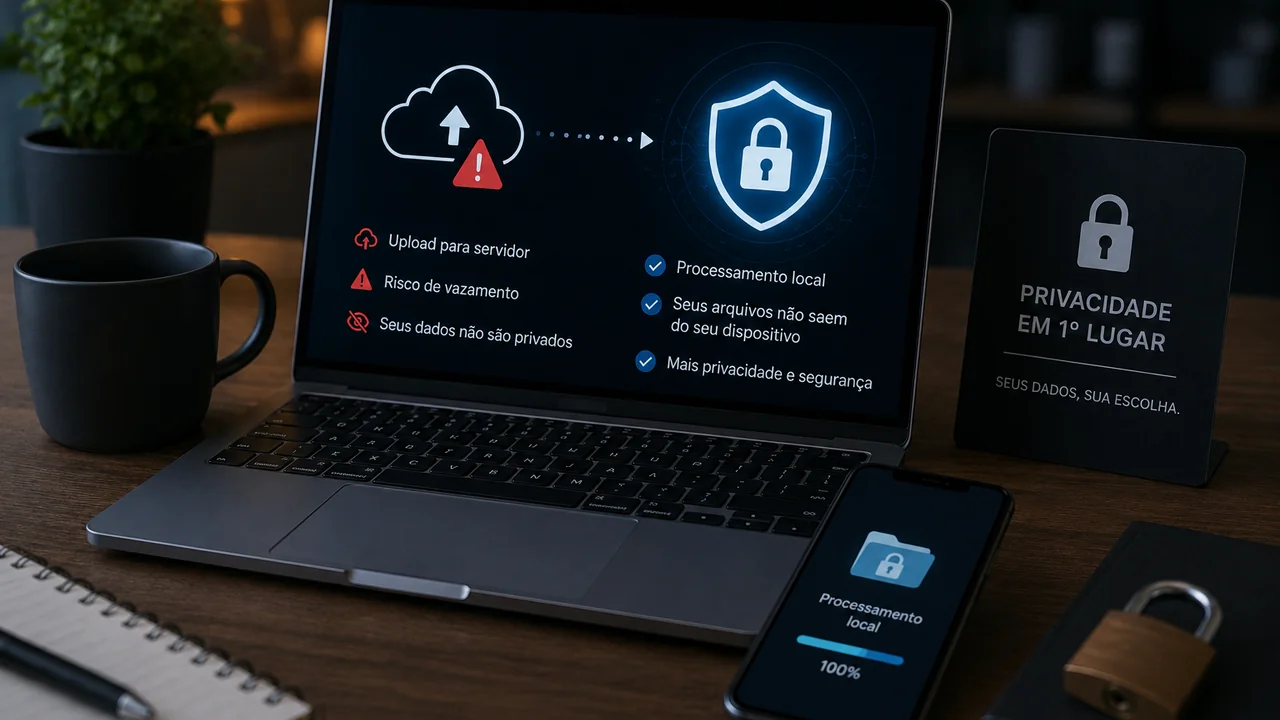
Every time you use an online video converter, image compressor or any web tool that processes your files, there is one crucial question you should ask yourself: "Where are my files going?". The answer may be more worrying than you think.
The vast majority of traditional online converters work as follows: you upload your file to a remote server, the server processes the conversion, and you download the result. It seems simple and harmless, but this model raises serious privacy and security issues that most users are unaware of.
The real risks of cloud converters
1. Your files are copied to third-party servers
When you upload a personal video, an intimate photo, or a confidential document to an online converter, that file is literally copied to a server you don't control, managed by a company you probably don't know, located in a country whose data protection laws may not apply to you.
Even if the site promises to "delete files after 24 hours", you have no guarantee that this actually happens. Automatic backups, system logs, and cached copies can keep your files accessible long after the promised time frame.
2. Interception during upload/download
If the site does not use HTTPS (or if the implementation is faulty), your files may be intercepted while in transit between your device and the server. On public Wi-Fi networks (coffee shops, airports, shopping malls), this risk is especially high.
3. Data leaks and security breaches
Servers that store millions of user files are attractive targets for hackers. Data leaks from big technology companies happen with alarming frequency. An online converter that accumulates videos and photos from millions of users is essentially a treasure trove for cybercriminals.
4. Commercial use of your data
Some free converters monetize not only through ads, but also by using the data from the files you upload to train artificial intelligence models, build datasets, or simply sell usage data to third parties. The Terms of Service — which almost no one reads — often authorize this type of practice.
The safe alternative: local (client-side) processing
There is a fundamentally different approach that eliminates all these risks: local processing, also called client-side processing. In this model, the web tool runs entirely in your browser, using your own device's resources (processor, RAM) to process the files. No data is sent to any server.
This is exactly how Free Conversion works. When you convert a video, compress an image or generate a QR Code on our website, all processing happens in your browser's memory using technologies such as WebAssembly (FFmpeg) and Canvas API. We literally don't have access to your files — not even if we wanted to.
How to identify if a tool processes locally
There are some signs that help you identify whether an online converter is processing your files locally or sending them to a server:
- Start speed: If processing starts instantly after selecting the file, it is probably local. If there is a visible "upload" with upload progress bar, the file is being uploaded to a server.
- Offline operation: If the tool continues to work when you disconnect from the internet (after the initial page load), the processing is definitely local.
- CPU/RAM Usage: Open Task Manager (Windows) or Activity Monitor (Mac). If the browser's CPU usage increases significantly during processing, it is local. If usage remains low and there is active network traffic, the file is being sent.
- Privacy Policy: Read the site's privacy policy. Tools that process locally often highlight this as a competitive advantage. If the policy mentions "temporary storage of files on servers", the processing is in the cloud.
Good security practices when using any online tool
- Prefer tools with local processing: Whenever possible, choose converters that process in the browser instead of sending to servers.
- Check HTTPS: Never use tools that do not have the green padlock (HTTPS) in the address bar.
- Avoid public Wi-Fi networks: If you need to use a converter that uploads, don't do it on open networks in coffee shops or airports.
- Read the Terms of Service: Especially the sections on data collection, file retention and sharing with third parties.
- Remove metadata: Before sharing images online, remove EXIF metadata that contains information such as GPS location, camera model, and capture date/time.
- Use up-to-date browsers: Modern browsers include advanced security protections that protect against malicious websites and data interception.
Conclusion
Your personal files deserve protection. The next time you need to convert a video, compress a photo, or process any file online, choose a tool that respects your privacy by processing everything locally on your device. With Free Conversion, your files never leave your computer — and that's how it should be.