How to extract just the audio (MP3) from a video easily
Published in July 2026 • 8 min read
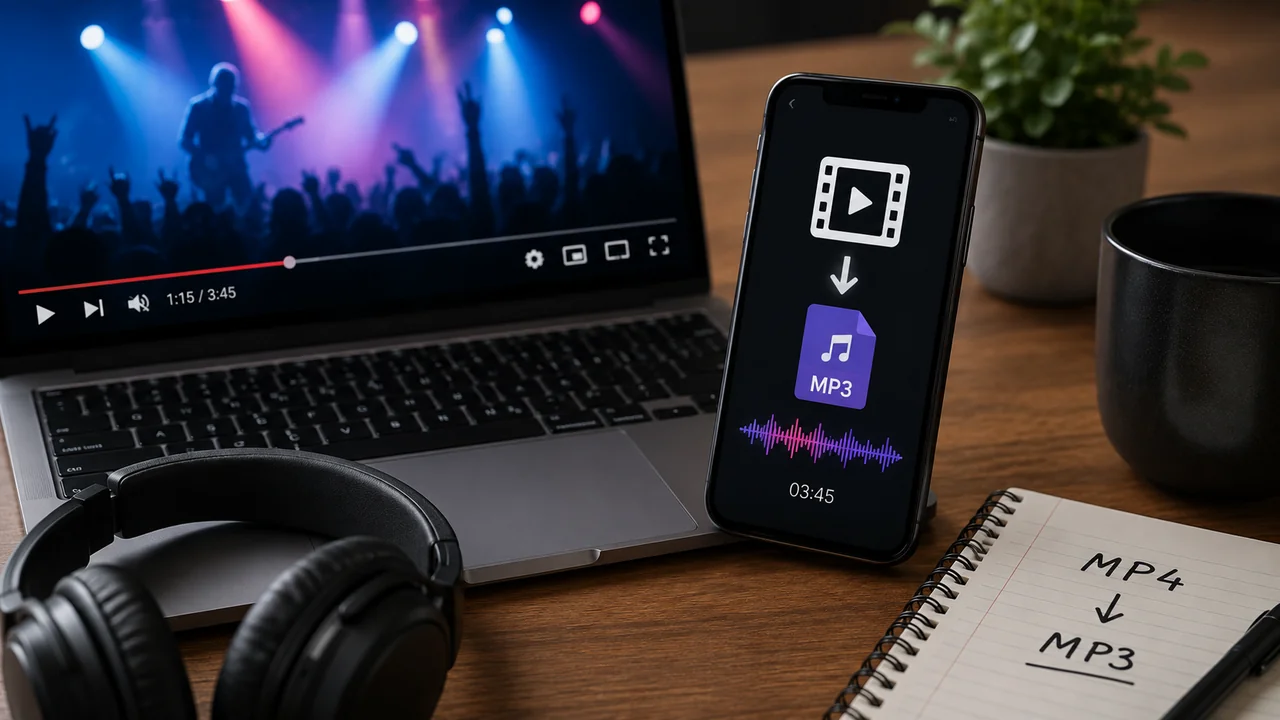
How many times have you come across a video whose soundtrack, podcast or music was exactly what you needed in audio format? Whether it's to create a personalized ringtone, listen to a lecture offline while walking, create a playlist of favorite songs or use it as study material, the need to extract audio from a video is incredibly common in everyday life.
The good news is that this process, which used to require heavy and expensive software like Adobe Audition or Sony Vegas, can now be done in a matter of seconds directly in your browser, without installing absolutely anything on your computer or cell phone. In this comprehensive guide, we will explain everything you need to know about audio extraction.
What does it mean to "extract audio" from a video?
Every video file (whether MP4, AVI, MKV or any other format) is actually a "container" that stores at least two separate tracks: the video track (the moving images) and the audio track (the sound). When we talk about "extracting the audio", we are simply separating this soundtrack from the video container and saving it as an independent file.
This process does not involve any conversion or loss of quality when done correctly. The audio track already exists within the video — the extractor just isolates it and packages it into a pure audio format, such as MP3, WAV, OGG, or AAC.
Audio Formats: Which One to Choose?
When extracting audio, you will need to choose the output format. Each format has its characteristics, advantages and ideal use cases:
MP3 (MPEG Audio Layer 3)
The most popular and universally compatible format in the world. It works on virtually any device — from smartphones and car players to smart watches. It offers an excellent relationship between quality and file size. It's an ideal choice for most situations, especially music and podcasts for personal consumption.
WAV (Waveform Audio)
Uncompressed format that preserves 100% of the original audio quality. The resulting files are significantly larger (about 10x the size of an equivalent MP3), but are ideal for music production, professional audio editing, or any situation where maximum quality is an absolute priority.
OGG (Ogg Vorbis)
Open source format that offers higher quality than MP3 at comparable file sizes. It is widely supported on Linux systems and the web, but may have limited compatibility on some older devices or car players.
AAC (Advanced Audio Coding)
The "spiritual" successor to MP3, designed to offer better quality in the same file size. It is the standard format of the Apple ecosystem (iTunes, iPhone, iPad) and is also widely used in online video streaming.
Step by Step: Extracting Audio with Free Conversion
The process is extremely simple and takes less than a minute in most cases:
- Access Free Conversion's Video Converter.
- Upload the video: Drag the video file to the indicated area or click to select from your device.
- Select "Extract Audio" as the conversion mode and choose the desired format (MP3 is the most recommended for general use).
- Adjust quality: For MP3, the rate of 192kbps provides excellent quality for music. For podcasts and voice, 128kbps is sufficient and produces smaller files.
- Click convert and wait for the processing, which happens entirely on your device.
- Download the resulting audio file by clicking the download button.
All processing happens locally in your browser using WebAssembly (FFmpeg) technology. This means that your video is never sent to any server — the extraction takes place in the memory of your own computer or cell phone, guaranteeing total privacy.
Practical Situations for Extracting Audio
The applications of audio extraction are more varied than you might think:
- Students: Extract audio from video classes to listen to while on public transport, at the gym or walking.
- Podcasters: Isolate excerpts from video interviews to include in audio-only podcast episodes.
- DJs and music producers: Extract stems or music tracks from videos for remixing and production.
- Teachers: Create audio material from recorded video conferences for students with visual impairments.
- Content creators: Reuse audio from YouTube videos as content for podcast platforms like Spotify and Apple Podcasts.
- Personal use: Create personalized ringtones from favorite music videos.
Tips for Better Extraction Quality
To get the best results when extracting audio from videos, consider the following tips:
- Original video quality matters: If the original video was recorded with low-quality audio, ripping won't improve it. The extracted audio will, at most, be the same quality as the audio embedded in the video.
- Suitable bitrate: For music, use 192kbps or 320kbps. For voice/podcast, 128kbps is sufficient. There is no point extracting at 320kbps if the original audio of the video was only 128kbps.
- Use WAV if you need to edit later: If you intend to make additional edits to the audio (cutting, mixing, adding effects), extract to WAV to avoid double compression. Convert to MP3 only at the end.
Difference between Extract and Convert
It is important to understand the technical difference between extracting and converting audio. Pure extraction (also called "demux") separates the audio track without reprocessing it, preserving the original quality. Conversion decodes the original audio and re-encodes it into another format, which may introduce a small loss of quality.
In practice, when you use Free Conversion to "extract audio to MP3", the process includes a conversion (since the audio inside the video is usually in AAC and needs to be converted to MP3). But the resulting quality is imperceptibly different from the original to human ears, especially at bitrates of 192kbps or higher.
Conclusion
Extracting audio from videos is an extremely useful task that no longer needs to be complicated. With Free Conversion, you can do this in seconds, directly in the browser, without installing anything and with complete privacy of your files. Try it now and turn any video into portable audio to listen to wherever and whenever you want.