How to Convert WebP Images to JPG Without Installing Programs
Published in July 2026 • 8 min read
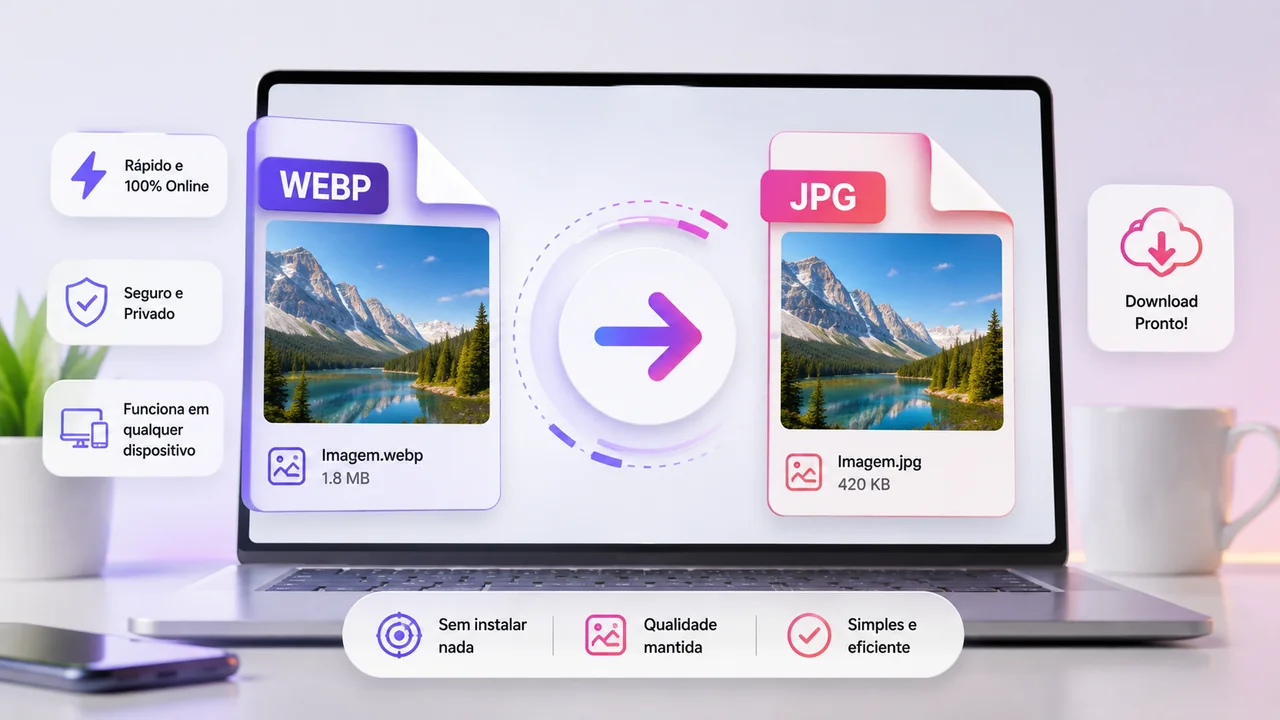
Have you downloaded an image from the internet and noticed that it came in WebP format instead of JPG? Did you try to open it in Paint, send it by email or use it as a profile photo on any system and received an "unsupported format" message? You are not alone. This is one of the most common problems faced by computer users these days, and the solution is simpler than you might think.
In this comprehensive guide, we'll explain what the WebP format is, why it's popping up everywhere, and how to convert it to JPG (JPEG) in seconds, without installing absolutely any programs on your computer.
What is the WebP format?
WebP is a modern image format developed by Google in 2010. It was designed with a specific goal: to deliver images with the same visual quality as JPEG, but with significantly smaller file sizes. On average, a WebP image is 25-34% smaller than a JPEG image of equivalent quality.
That may not seem like much for a single photo, but when you consider that a site like Google Images serves billions of images per day, these size savings translate into hundreds of terabytes of data saved daily — meaning faster websites, less mobile data usage, and a more efficient internet.
Why do so many websites use WebP?
The massive adoption of WebP happened for one main reason: speed. Google, which is the largest search engine in the world, started to prioritize sites that load faster in its results. As images account for 50-80% of the weight of a typical web page, reducing image size using WebP has become one of the most effective ways to improve performance.
Platforms like WordPress, Shopify, Wix and most CDNs (Content Delivery Networks) have started to automatically convert images to WebP before serving them to the visitor. In other words, even if the website owner uploaded a JPEG, what reaches your browser is a WebP.
Social networks and media services have also adopted the format: Google Photos, Facebook, Instagram and even some e-commerce apps serve images in WebP to save data.
The problem: incompatibility with traditional programs
Although all modern browsers (Chrome, Firefox, Safari, Edge) support WebP perfectly, many traditional desktop programs still do not open this format natively:
- Older versions of Photoshop: Only support WebP with additional plugins (versions prior to Photoshop 23.2).
- Microsoft Paint (old versions): Paint on Windows 10 does not open WebP; Windows 11 supports it.
- Upload systems: Many government websites, contest forms, and corporate systems only accept JPEG or PNG.
- Printers and photo kiosks: Most only accept JPEG for photo printing.
- PowerPoint Presentations: Older versions of PowerPoint do not support built-in WebP.
- Mobile apps: Some older photo editing apps don't recognize the format.
How to Convert WebP to JPG Online (Step by Step)
The fastest and safest way to convert WebP to JPG is using Free Conversion Image Converter. Here's how:
- Access Image Converter in Free Conversion.
- Drag the WebP image to the indicated area, or click to select from the computer. You can drag multiple images at once for batch conversion.
- Select "JPG" as output format.
- Adjust the quality if desired (80-90% gives excellent results for most uses).
- Click "Convert" and wait for processing, which only takes a few seconds.
- Download the converted images by clicking the download button.
Important: All processing happens directly in your browser using the Canvas API. Your images are never uploaded to any server. It is 100% private and secure.
WebP to JPG: what happens technically?
When you convert WebP to JPG, what happens behind the scenes is relatively simple:
- The browser decodes the WebP file and loads the image as a grid of pixels into memory.
- JavaScript's Canvas API "draws" these pixels onto an invisible canvas.
- The canvas is exported in JPEG format using the
toDataURL('image/jpeg', quality)ortoBlob()method. - The result is offered for download.
As JPEG is a lossy compression format, the resulting image may be of slightly lower quality than the original WebP. However, at qualities of 80% or higher, the difference is imperceptible to the human eye in the vast majority of cases.
Batch conversion: multiple images at once
If you have dozens or hundreds of WebP images to convert, doing them one by one would be extremely tedious. Free Conversion Image Converter supports batch conversion — just select multiple files or drag an entire folder to the upload area. All images will be converted simultaneously and available for download individually or in a ZIP file.
Alternatives to JPG: when to use PNG or AVIF
JPG is not always the best destination to convert your WebP. Consider these alternatives:
- PNG: Use if the image has transparency (transparent background), readable text, or if you need pixel-perfect quality without any loss of compression. The file will be larger, but the quality will be perfect.
- AVIF: If the destination supports AVIF, use it instead of JPG. Offers superior quality in sizes even smaller than the original WebP.
Tips for maintaining the best quality
- Do not convert repeatedly: Avoid converting WebP to JPG and then JPG back to WebP. Each lossy conversion slightly degrades quality.
- Use quality 85-90%: This range offers excellent visual quality with reasonable file size. Above 90%, the increase in size rarely justifies the imperceptible improvement in quality.
- Preserve original dimensions: Do not resize the image during conversion unless for a specific reason. Upscaling does not add detail and may result in blurry images.
Conclusion
Converting WebP to JPG doesn't have to be complicated. With Free Conversion, the process takes seconds, works on any browser and device, does not require the installation of any software and is 100% private. The next time a website serves an image in WebP and you need it in JPG, just open our tool and convert instantly.